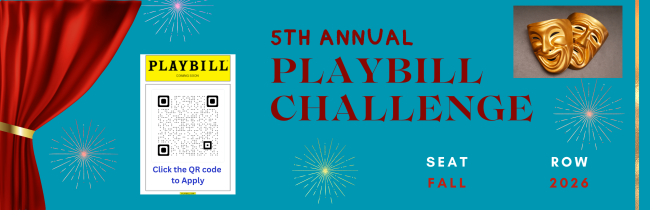
Students are invited to participate in the 5th annual art challenge by designing a playbill for one of the 18 majors. The playbill can be for a play or musical genre. Participants must create a name for their show. The fall play audiences will rank their favorites, and the top 3 playbills will win 1 ticket to the Spring Musical OR 1 free ticket to one of Mr. Mousley's Broadway Spring show opportunities. Work is due November 5th.
Ryba is showing the details supported by the announcement; applicability or other details may need checking.
PLAYBILL CHALLENGE DEADLINE TO SIGN UP IS SEPTEMBER 30TH
· email-70a38dda76dc-b41
WORK WILL BE DUE NOVEMBER 5TH
· email-70a38dda76dc-b42
RSVP Link for Playbill
· email-70a38dda76dc-b44
Advisor: Ms. Massie
· email-70a38dda76dc-b45
Visible image transcription:
5TH ANNUAL PLAYBILL CHALLENGE
PLAYBILL
Click the QR code to Apply
SEAT FALL
ROW 2026
· image:email-image-19
Visible image transcription:
Calling all artists.
The 5th annual art contest is HERE.
How does it work?
Complete the challenge & showcase your work.
The fall play audiences will rank their favorites.
The top 3 playbills will win 1 ticket to the Spring Musical OR 1 free ticket to one of Mr. Mousley's Broadway Spring show opportunities.
The challenge:
Choose one of our 18 Majors and create a playbill for the major. The playbill can either be for the play or musical genre. You must create a name of your show.
· image:email-image-20
Something wrong?
This reports a problem with how Ryba is showing this item. It won't change the school announcement or what another family sees.
Help
A quick guide for your family.
What is Ryba?
Ryba helps families keep up with school information in one place.
Timeline shows what is happening and when. Briefing highlights things that may need your attention. News collects stories from school newsletters.
Start here for school events, deadlines, and other dated information. The first section shows four weeks. Later shows things farther away. Weekends and days without school have a different color. It shows information for your student's grade; things meant only for other grades are left out. Search finds everything.
The dot beside each item tells you what kind it is:
Something to do by a date, like a form, payment or sign-up
An event to know about or attend
On the date line, the glowing dot marks today
A group of related items shows the "something to do" dot if anything in it has a deadline.
A shorter view of what may need attention now. It uses your student's grade and interests. It does not list everything.
Use Search to find information beyond the four weeks shown in Timeline.
News
Stories from school newsletters and announcements: results, awards, profiles and recaps of past events. There is nothing to do or attend, so they are kept off Timeline and Briefing.
Stories are grouped by the day the school sent them, newest first, for the last two months. The first story of each day is shown larger.
All shows every grade. Pick a grade to see only its stories; stories for the whole school appear under every grade.
Ryba decides which items are stories. If something you expected is missing from Timeline, Search still finds it in the school's email.
Related announcements may appear under one heading. Tap the heading to see the details, including dates, places, what you need to do, and where the information came from.
Sometimes two announcements look alike but stay separate because Ryba cannot be sure they mean the same thing.
Ryba shows dates, times, rooms, and places when it can find them in the school information. If a detail is missing or needs checking, open Sources before making plans.
PA means the information came from or is supported by the Parent Association.
Daily Announcements
Tap the updated date near Brooklyn Tech to open the latest Daily Announcements, when available. Use Previous and Next to see earlier days.
Add a student's name, grade, graduation year, and interests. Grade helps show information for that student. Interests help bring useful opportunities forward; they do not hide schoolwide news.
Use Manage students to edit a student, add another, or switch students.
Hide something
If something is not useful to your family, you can hide it. This only changes what you see. It does not change the school's information for anyone else.
You can restore hidden items from Manage students. Your student setup and hidden items are saved in this browser, so another device will not automatically have them.
Notifications
Notifications are optional. Choose Important only to hear about things that may need attention, or All updates to hear more news. You can change this from the account menu.
Check the original
Open Sources to see where the information came from. Check the original school message when a detail matters or needs checking.
Live updates
New or changed school information may appear while Ryba is open, without a reload.
NewChanged
Ryba helps you follow school news. For important details, check the original school message.